
Make the Tool You Wish Existed (with Your LLM)
Build custom HTML tools that fit your exact workflow using LLMs. No extensive programming knowledge required. Turn workflow problems into practical tools in hours.
What if you could build the tool you've been wishing for without waiting months for development or settling for close-enough solutions? What if you could turn a frustrating workflow problem into a working application in an afternoon?
I've built several tools this way. Some lasted a few weeks, others I still use daily. Each one solved a specific problem I had, and building them took hours, not months.
Overview
I call these HTML tools, which is a term I'm borrowing from Simon Willison, who's built over 150 of them. They're self-contained HTML files that run entirely in the browser, solving specific workflow problems without the overhead of traditional software development.
We use tools constantly at work to create designs, manage tasks, build websites, manipulate images, and communicate with our teams.
Traditionally, you either find an existing tool that meets most of your needs (and work around what it doesn't do), or you build something custom using traditional software engineering approaches (which means finding developers, waiting for development, and paying for ongoing maintenance).
With LLMs and the power of the web platform, you can now create custom HTML tools that fit your workflow. You describe what you need, the LLM builds it, and you iterate until it works.
What's the difference between HTML tools and production applications?
A production app is built for many users, requires robust error handling, security considerations, and ongoing maintenance. It often involves complex architectures, databases, and deployment pipelines.
This article focuses on personal tools: simple, HTML tools that run entirely in your browser. They solve specific workflow problems for you (and maybe a few colleagues) without the overhead of traditional software development.
Why Build HTML Tools?
There are many ways to build tools, but building tools in your web browser gives you serious capabilities out of the box:
- Build user interfaces with forms, buttons, and interactive elements
- Create visualizations with charts, maps, and diagrams
- Retrieve information in real time from APIs
- Store data locally in the browser
- Process files (images, JSON, CSV, etc.)
- No installation required (just open a browser)
The LLM handles the implementation. You don't need build steps, package managers, or deployment pipelines. You describe what you want, the LLM generates the code, and you open it in a browser.
Easy to host as a single file means you can email it to colleagues, drop it on a simple web server, or keep it on your desktop.
Getting Started
I used Claude Code to create and iterate on all the code and content. The process is straightforward: describe what you need, review what the LLM generates, test it, and iterate.
The LLM handles library selection, implementation details, and code structure. You focus on describing what you need and testing the results.
Here's how to build your first tool:
Step 1: Start Simple
Describe your workflow problem in plain English. What manual task are you doing repeatedly? What tool almost works but doesn't quite fit?
- Ask the LLM to create a basic HTML tool that solves the core problem.
- Be sure to specify constraints such as "Use only vanilla JavaScript, minimal CSS, no frameworks like React". This keeps the tool lightweight and easy to run in any browser.
- Test it. See what works and what doesn't. Iterate on it with the LLM.
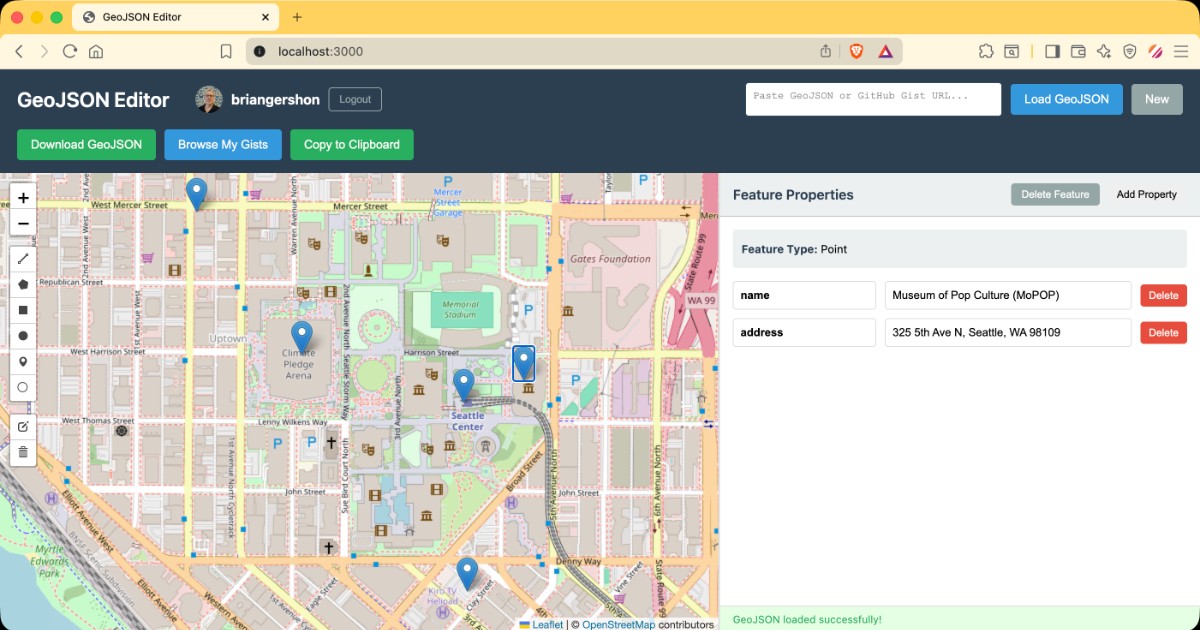
Here's a real example: I wanted to build a map of places to visit. I could've dropped pins in Google Maps, but I wanted something I could own: data I could version, extend, and reuse. I chose GeoJSON (a standard format for geographic features), but it's tedious to write by hand. I needed a visual editor.
I asked the LLM to create a HTML tool that displays GeoJSON on a map:
Create a simple HTML tool to visualize and edit GeoJSON data.

The app should allow users to paste in GeoJSON, display it on a map,
let users add, edit, and delete points, and download the updated GeoJSON file.

Use only vanilla JavaScript and minimal CSS for styling. No React.
The LLM chose Leaflet.js, which was right for this use case. I didn't specify the library; I just described what I needed.
Leaflet.js: A lightweight JavaScript library for interactive maps. It handles detailed maps, markers, panning, zooming, and other basic map interactions out of the box.
Step 2: Evolve with Features
Add capabilities as you discover needs:
- File loading and saving
- Integration with third-party services (APIs, GitHub, cloud storage)
- Data persistence (browser localStorage, export to JSON)
- Better styling and user interface improvements
Each iteration builds on the previous version. You don't need to plan everything upfront.
Continuing the GeoJSON editor example: Viewing the map was useful, but I wanted to add new points, edit existing ones, and download the updated GeoJSON file. I asked the LLM to add those features.
Now I could paste in GeoJSON, click on the map to add points, edit names and coordinates, and download the result. A major improvement from editing files manually.
Step 3: Refine and Maintain
Continue iterating over time. As your needs change, update the tool.
If the app gets more sophisticated, you might modularize the code (split into separate functions or files). If it becomes critical to your workflow, consider adding error handling and data validation.
For the GeoJSON editor, I took it further by adding GitHub integration. I wanted to load and save files directly from GitHub, which tracks changes and renders .geojson files natively.
GitHub rendering: GitHub's native ability to visualize .geojson files in the browser, showing geographic data as an interactive map without requiring any additional tools.
This iteration was more involved. It required creating a personal access token and configuring repository permissions. But with the LLM's help, I got it working quickly.
In a few hours total, I had built a full map editor that met my needs.
Other Tools I've Built (to give you ideas on what you might build)
Bluesky content filter: I wanted to discover interesting posts on Bluesky by filtering in real time based on keywords. Built a HTML tool that receives real-time posts via the Bluesky firehose of posts and lets me filter by various criteria.
Blog image resizer: I needed to resize and upload images for my blog with specific dimensions and naming conventions. Built a tool that handles resizing, generates the right filenames, and uploads to my image hosting service. The hosted image service API requires authentication, which the tool handles by storing tokens in browser localStorage.
Vacation itinerary planner: I wanted to manage vacation plans using plain English, then generate a nicely designed web page I could share with travel companions. The tool converts markdown lists into formatted itineraries and calendar.
Markdown presentation builder: I prefer writing presentations in markdown, then displaying them in the browser. Built a simple tool that converts markdown into presentation slides with keyboard navigation and clean styling.
Each tool solved a specific workflow problem. Some took 30 minutes, others took a few hours. All of them saved me time.
Resources
Here are some resources for building your own tools:
- Useful patterns for building HTML tools - Simon Willison has built over 150 tools using this approach.
In Conclusion
You don't need to wait for someone to build the tool you need. You don't need extensive programming knowledge or a development team.
Describe your workflow problem, let the LLM build it, and iterate until it works. Start simple, add features as you discover needs, and refine over time.
The next time you find yourself doing something tedious or working around a tool's limitations, try building what you need instead.